Great Text to Speech TTS Service
By Mark | OneNet on February 2, 2026
BeginnerSOURCE: https://www.quo.com/tools/voicemail-generator
A Great source testing to use for the purpose Text to speech For voicemail, automated attendance, integrated voice response and other is at the link below:
TTS SERVICE: https://www.quo.com/tools/voicemail-generator
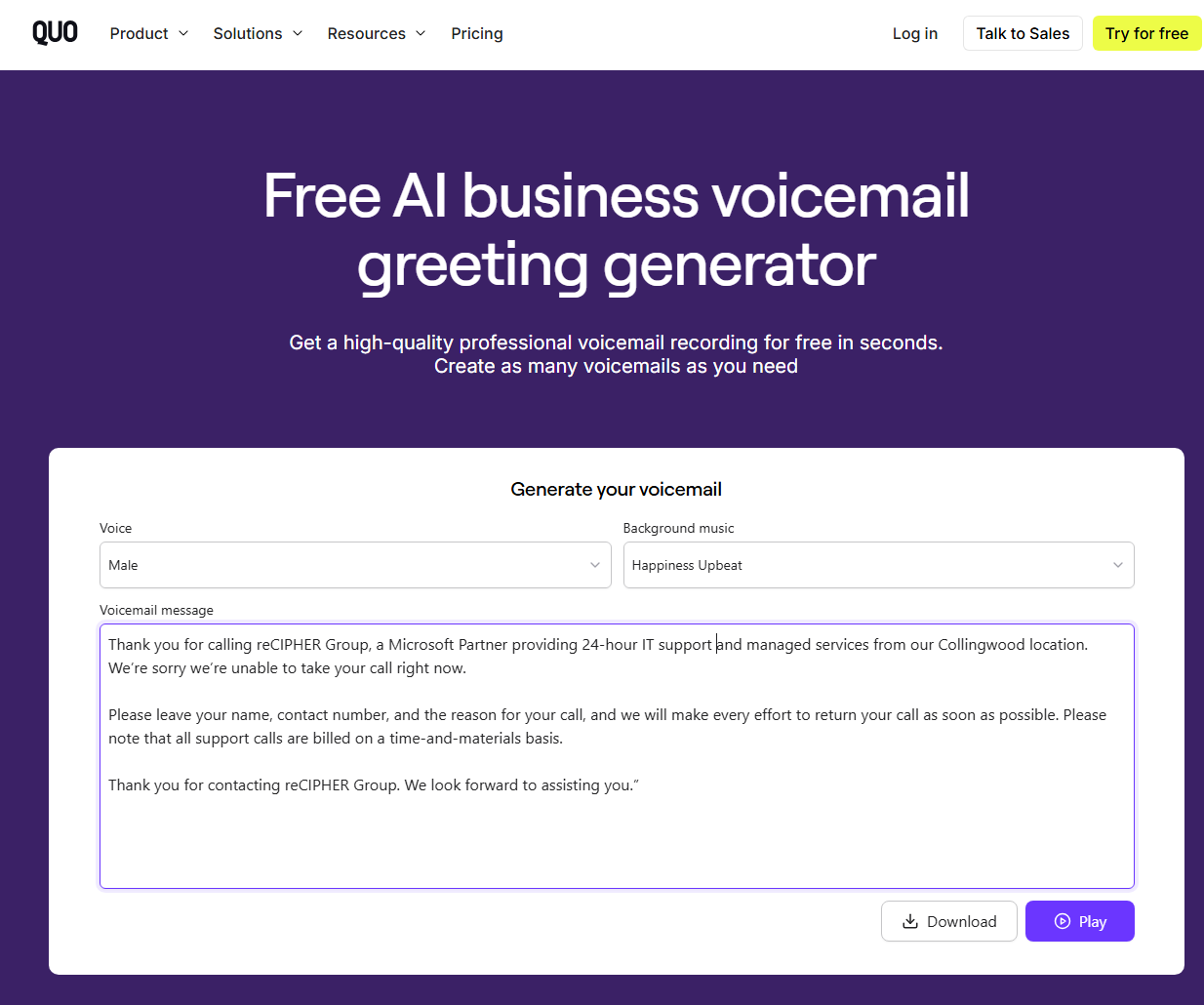
Simply generate a script using Microsoft Copilot or other AI Tool and transfer that into the appropriate generator on the above website. This TTS Service also includes a Background Music feature for a very professional sounding solution.
Paste and adjust the text Script, and then listen to the generated audio of the chosen character and playback speed. When you are content with the results, simply download the audio file and save to a location for retrieval at a later stage.
To use the file as Voicemail in 3CX, file is saved with the correct Voice Format by uploading the file you generated to the Online 3CX File Format Converter:
https://www.3cx.com/docs/converting-wav-file/#h.rbpbhjvsfwfm
Upload the .WAV file you generated on the Text To Speech Service to the Online 3CX file format conversion tool, and download the new .WAV file to a path for future retrieval.
to update the voicemail within 3CX, simply log in to the 3CX Web App, then select Settings & Greetings. Here you Will have the option to update the voicemail recording for all Greetings such as:
Default
Available
Away
Do not disturb
Lunch
Business trip
Press the Arrow Up Button to upload the file as generated by the 3CX online file Conversion Tool
More articles on VOIP