Download and Install Microsoft 365 Apps
By Webmaster | OneNet on February 9, 2026
BeginnerDownload and install apps
As you're getting your Microsoft 365 business subscription set up, you'll want to download and install your Microsoft 365 apps, like Word, Excel, Microsoft Teams, and PowerPoint, on your PC or Mac.
- Go to m365.cloud.microsoft/apps and sign in with your Microsoft 365 account.
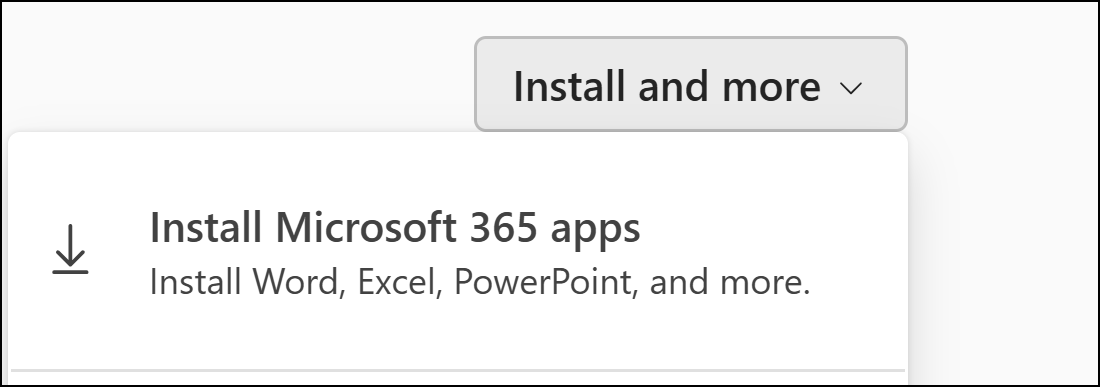
- Select Install and more, and then select Install Microsoft 365 apps.
- Select Install Office, and then open the OfficeSetup.exe file that downloads to your computer.
Tip: As your apps are installing you might see the User Account Control prompt pop up and ask Do you want to allow this app to make changes to your device? Select Yes.
- The first time you open an app like Word or PowerPoint you might need to sign in with your new business email address and password to activate the app.
Tip: Signing in connects the apps to the rest of Microsoft 365, letting you save files to the cloud, share files with others, and have your documents save automatically as you work.
Next steps
To set up and use Outlook with your subscription, see Set up and use Outlook.
Related topics
Microsoft 365 help for small businesses on YouTube
Download and install or reinstall Microsoft 365 or Office 2021 on a PC or Mac
Was this article helpful?
More articles on MICRIOSOFT - 365